







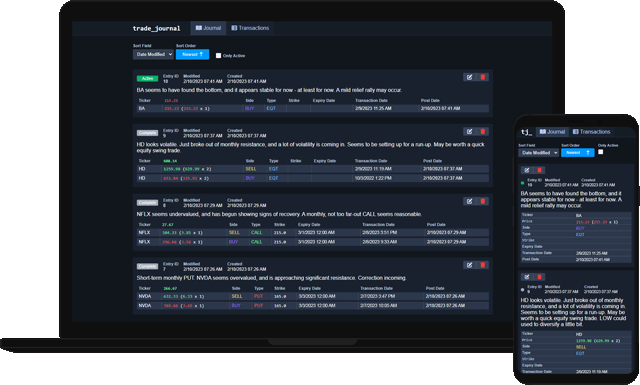
Designed for Data
From the beginning, it was clear that the app would need to display large amounts of data neatly. Therefore, I chose not to rely any existing, 3rd party design framework, but to instead design my own user interface from scratch. To make this custom UI feel interactive and reponsive, I decided to use React.
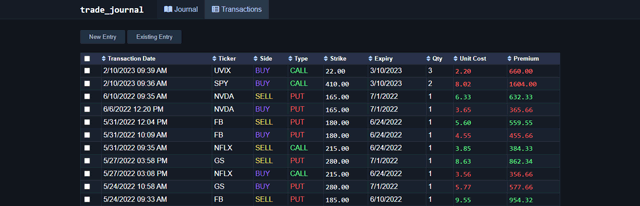
Browsing Transactions
The Transactions page displays a table containing all of the purchase and sale transactions retrieved from TD Ameritrade using their API.
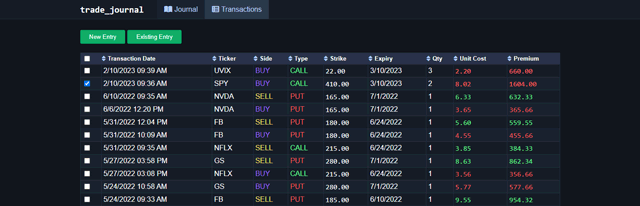
Selecting Transactions
When one or more transactions are selected, the 'New Entry' and 'Existing Entry' buttons become enabled.
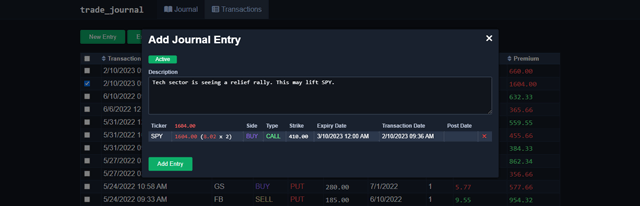
Adding a New Entry
Clicking on the 'New Entry' button will open a modal wherein the transactions being added will be displayed. Above, a description for the trading strategy can be provided. Of course, it can always be updated if the user choses to add more transactions to the entry later.
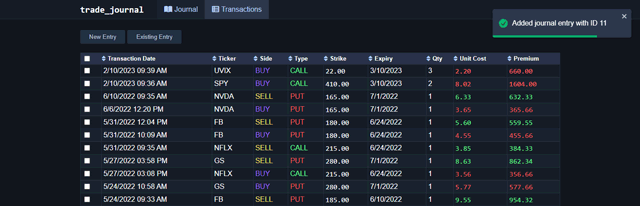
New Entry Success
If the new entry was added successfully, selections on the transactions table will clear and a confirmation message will display in a toast. Otherwise, an error will be displayed.
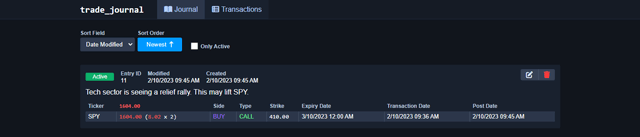
Viewing the New Entry
On the Journal page, we can see all of our entries. By default, the one last modified should appear at the very top. Each entry displays all of the transactions assigned to it, a description explaining the strategy, as well as various metadata, including the dates of each element.
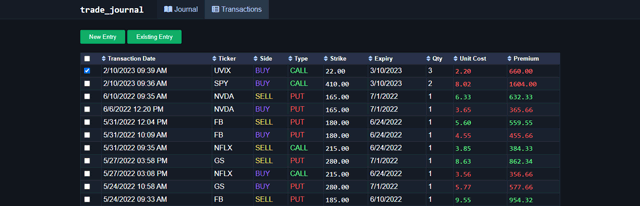
Modifying Entries
We can modify what we've posted in the journal by clicking the edit icon in the top-right corner of the given entry. If we would like to add another transaction to an existing entry, we can do so from the Transactions page.
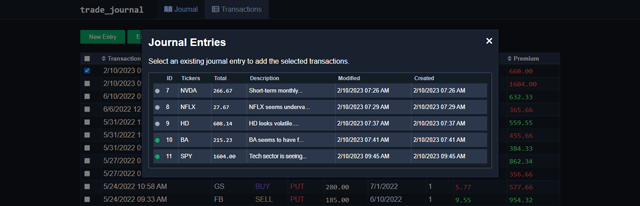
Existing Transactions Modal
Clicking on the 'Existing Entry' button will open a modal that allows us to choose which entry we'd like to add the selected transactions to.
Adding Transactions to Entry
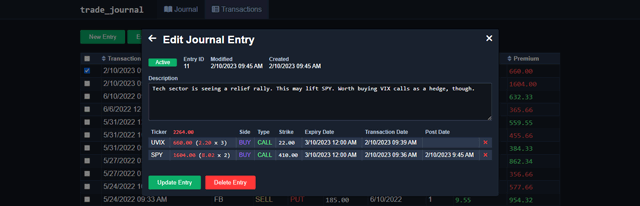
After selecting an existing entry from the previous modal, we are shown the entry edit modal. Here, we can update the description of our entry before we finalize adding the new transactions.
Viewing the Updates
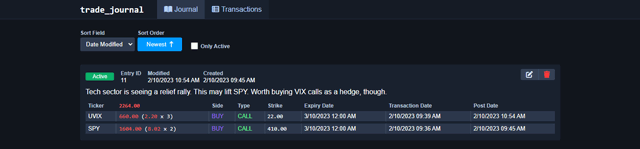
Once we're happy with our changes, we can of course view our updated entry on the Journal page.
Deleting an Entry
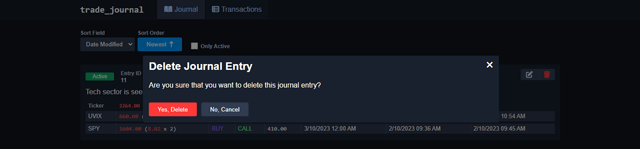
Clicking the delete icon displayed in the top-right corner of an entry will bring up a modal, which asks us for confirmation.
Sorting and Filtering Entries
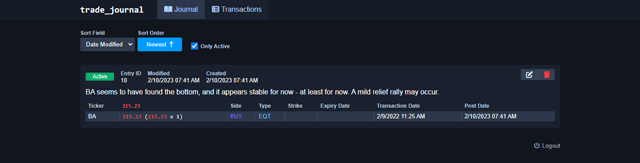
The controls displayed at the top of the Journal page can be used to sort and filter entries. The dropdown sorts by modified or created dates - in ascending or descending order - while the nearby checkbox toggles the display of non-active trades.